In this post I’m going to walk you through Remote DataBlocks — a free plugin from the WordPress VIP team that connects external APIs to the WordPress block editor. I created a short video demo of this plugin (I’m Brendan O’Connell), but this article is a written, expanded walkthrough: what Remote DataBlocks does, why it’s interesting, how it works in the Block Editor, and practical ways you can use and extend it for real projects.
Table of Contents
- Why Remote DataBlocks matters
- Key features at a glance
- Quick look: the WordPress Playground demo
- Inline bindings: the small but powerful detail
- Looping over external APIs (the conference event example)
- Extending Remote DataBlocks: custom blocks and APIs
- Performance: caching and best practices
- Practical use cases
- How to get started
- Tips for developers
- FAQ
- Conclusion
Why Remote DataBlocks matters
Modern websites rarely live in a single silo. Marketing tools, CRMs, inventory systems, spreadsheets, and SaaS platforms store content and data in different places. Remote DataBlocks treats WordPress as a content hub by letting you directly bind block content to external APIs and loop over external data inside the block editor. That means live data from Airtable, Shopify, Google Sheets, Salesforce, GitHub, or any custom API can show up and be managed inside Gutenberg — without copying and pasting or syncing CSVs.
The core idea is simple but powerful: instead of storing every piece of structured content in WordPress itself, you visually reference external data sources and render them with blocks. When the external data changes, your block content reflects those changes — and if you prefer, Remote DataBlocks’ smart caching prevents performance issues by avoiding constant fetches.
Key features at a glance
- Connect external APIs to the Block Editor with pre-built integrations (Airtable, Shopify, GitHub, Google Sheets, Salesforce).
- Inline bindings — pull API fields directly into a paragraph or rich text, not just block templates.
- External query looping — use loop-like templates that iterate over API results (like a Query Loop but for external sources).
- Smart object caching — balance live updates and performance so sites aren’t constantly fetching remote data.
- Extensible — build your own custom Remote DataBlocks for any API using the plugin’s documentation and code examples.
- Developer docs & AI examples — the project includes guides for extending the plugin and even pointers for AI tooling and Cursor integration.
Quick look: the WordPress Playground demo
If you want to try Remote DataBlocks immediately, the team provides a “Try it in Playground” experience that spins up a full WordPress instance in your browser. This is a great way to explore without installing anything locally.
In the Playground example I used, the demo site connected to an example API that lists events for an upcoming conference. The block editor showed those events as items coming from the external API rather than stored in WordPress itself.
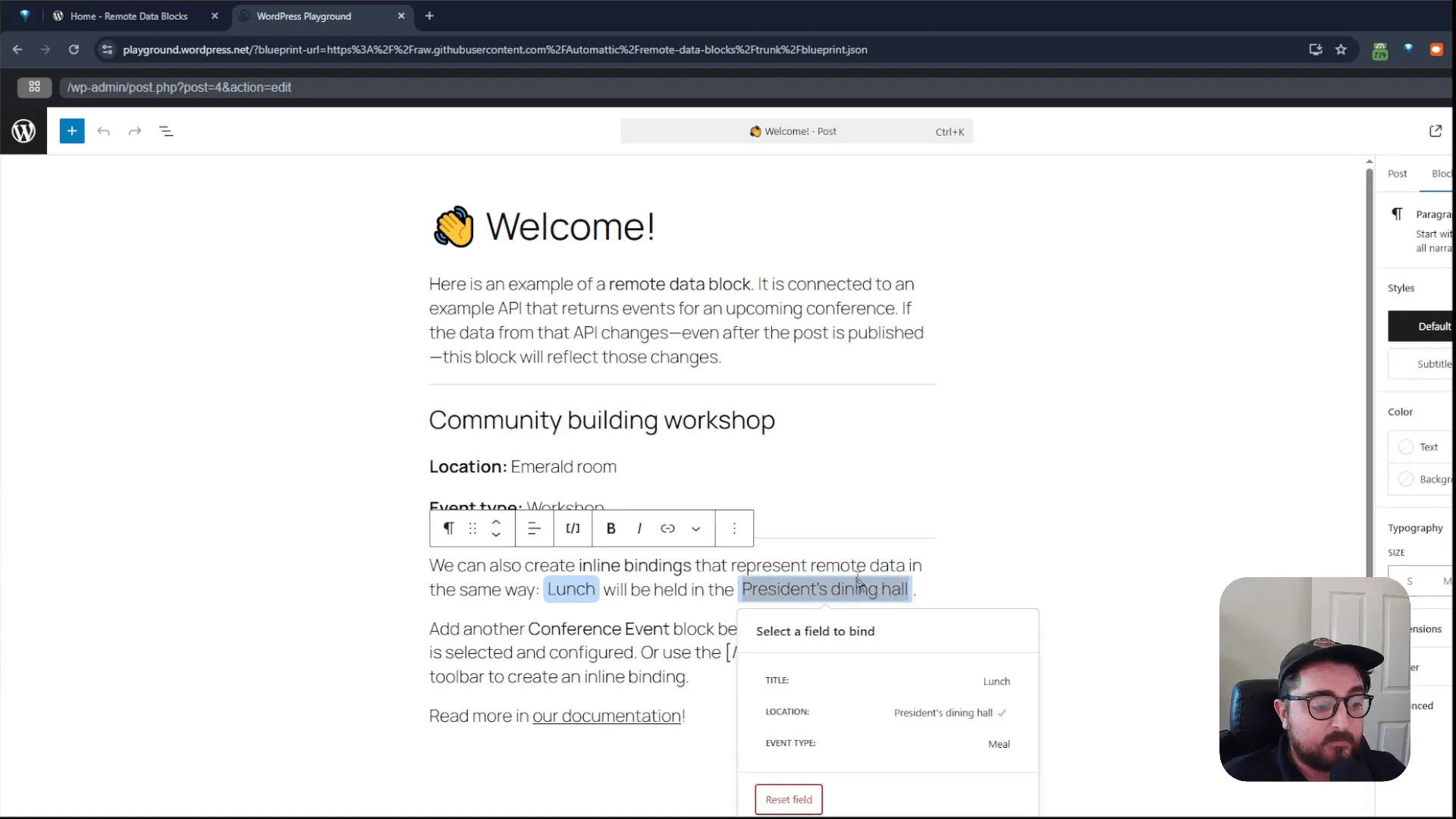
That demo highlights two important behaviors:
- Blocks can reference fields from an external API and display them inline in text or as discrete block elements.
- A loop-like block template can iterate over external items, rendering each result using your chosen block template — essentially an external Query Loop.
Inline bindings: the small but powerful detail
One of the things I like most is inline binding. Rather than being limited to dedicated loop blocks, you can bind single API fields directly into a paragraph or text block. That means you can produce sentences like “Next event: [event.title] on [event.date]” where each placeholder is linked to live API fields.
“You can do it in line, so it’s not just like a query loop that you’re used to. You can actually do it, in line within, like, a block of text.”
Inline binding makes it simple to build hybrid content: free-form content combined with dynamic fields from any connected source.
Looping over external APIs (the conference event example)
The Playground contained a custom block called “Conference Event.” Adding it to the editor let me choose which event(s) to display from the external API and then render them using a template inside the editor. This behaves like a Query Loop, except the data source is remote.
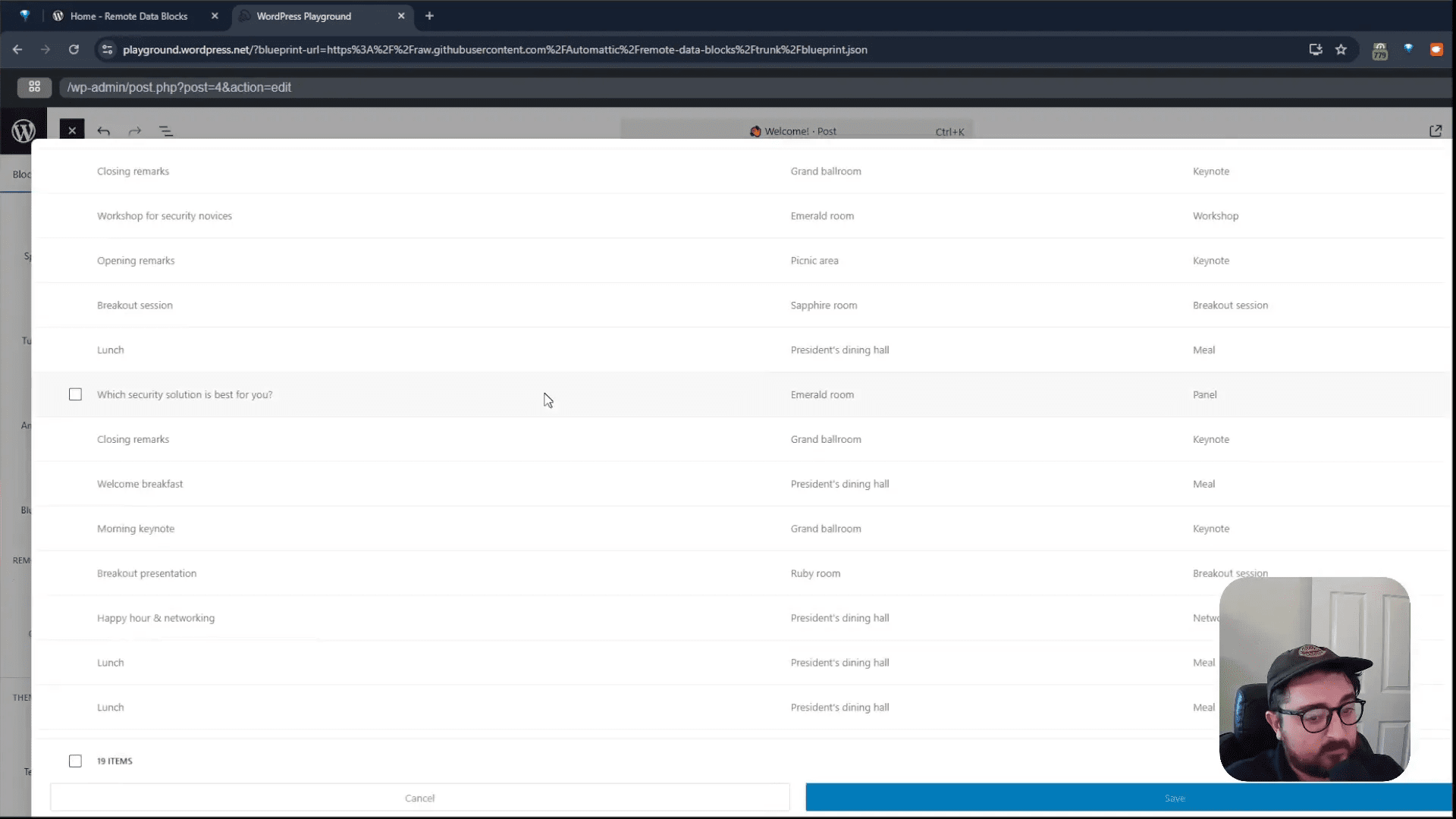
When you open the editor’s structure panel you’ll see your template — a single “item” inside the template that’s being looped over the external API results. You can style that template using standard block controls, and the loop renders each external item accordingly.
“It’s basically functioning like a query loop, but it’s query looping externally.”
Extending Remote DataBlocks: custom blocks and APIs
The plugin ships with several ready-to-use integrations, but one of the most valuable aspects is extensibility. If a service isn’t already integrated, you can build a custom Remote DataBlock that speaks to any API. The docs include examples and guidance on the block binding APIs that WordPress exposes, which Remote DataBlocks leverages.
Examples I experimented with include:
- Airtable databases (useful when your editorial data is maintained in Airtable and you want changes reflected on the site in real time).
- Shopify product listings or inventory data (display product feeds or external storefront info inside WordPress pages).
- Google Sheets (great for lightweight editorial workflows or shared spreadsheets acting as a content source).
- Custom APIs — I built a small demo around a novelty Keanu Reeves “woah” API to show how custom blocks map to unique endpoints.
The docs also point to the plugin’s Git repository and include AI-related README examples that can help when integrating with AI tools or Cursor. If you’re a developer building custom Remote DataBlocks, these docs are a practical starting point.
Performance: caching and best practices
One common concern when pulling external data into your site is performance. Remote DataBlocks addresses this by including smart object caching. The idea is to fetch fresh data when needed but avoid hammering external APIs on every page load. Caching modes and TTLs can be tuned to balance timeliness and speed.
Keep these best practices in mind:
- Cache aggressively for data that doesn’t change frequently (event lists could be cached for minutes to hours depending on update frequency).
- Use webhooks or update triggers from the source when possible to invalidate caches proactively.
- Monitor API rate limits and use paginated requests where appropriate to avoid large payloads.
- Leverage server-side caching (CDN, object cache) in addition to the plugin’s object caching for public pages.
Practical use cases
Here are a few scenarios where Remote DataBlocks is particularly useful:
- Agency sites that need to combine WordPress content with client-managed data sources (Airtable, Google Sheets, Salesforce).
- Ecommerce storefronts that want to display Shopify product data in editorial pages or landing pages built in Gutenberg.
- Internal dashboards where live data from CRMs or analytics platforms needs to be embedded in a WordPress admin page or internal site.
- Marketing teams that keep campaign schedules in shared spreadsheets but want the canonical campaign pages to pull the latest dates and copy.
How to get started
There are two quick ways to try Remote DataBlocks:
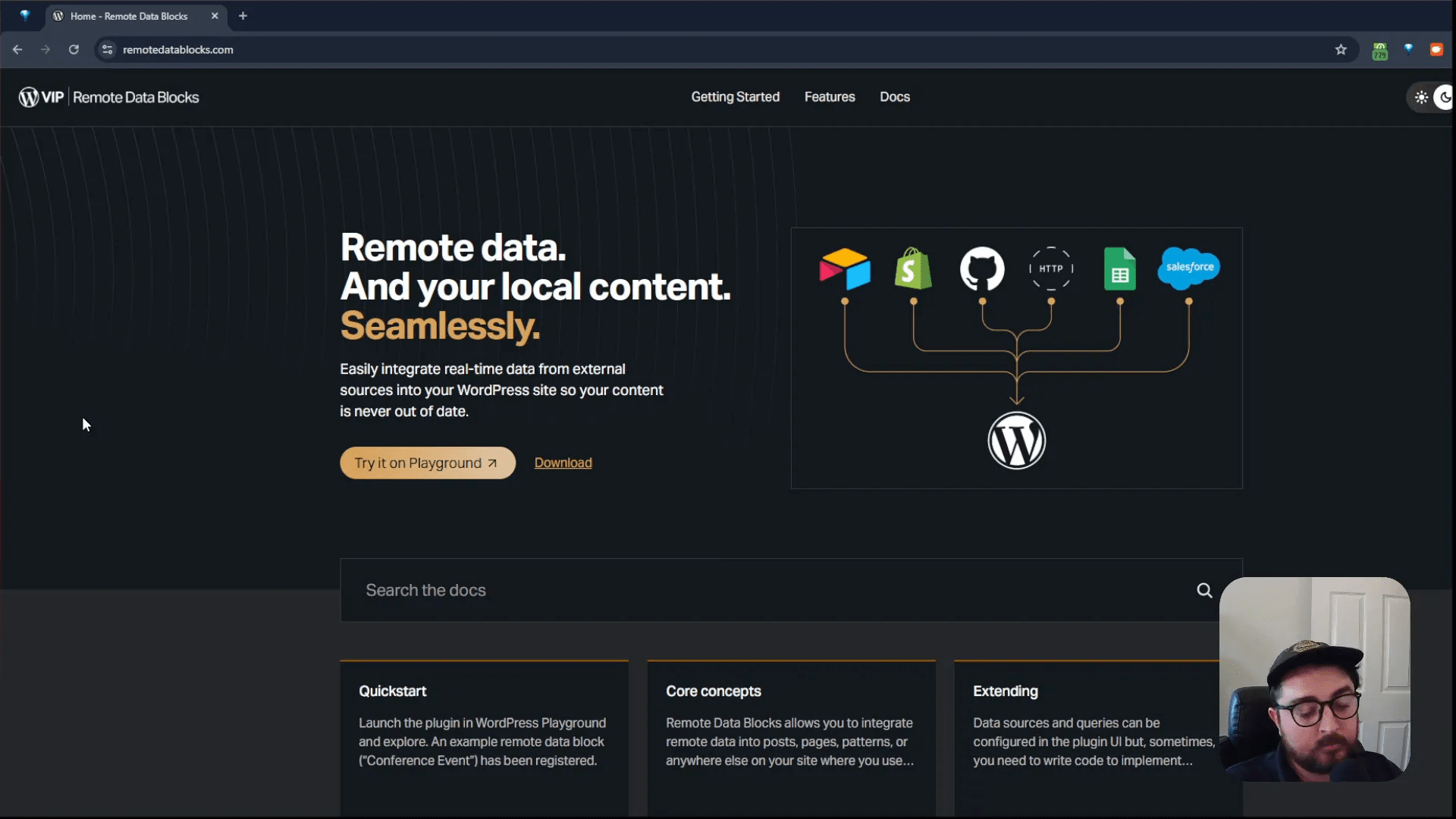
- Visit remotedatablocks.com and click “Try it on Playground” to open an in-browser WordPress instance preconfigured with Remote DataBlocks. Explore the example APIs and blocks immediately.
- Download the plugin ZIP from the website and install it into a local or live WordPress site. Follow the documentation to configure integrations and set up API credentials where necessary.
The documentation is a good starting point: it explains core concepts, quick-start instructions, and how to create custom blocks. If you plan to extend the plugin, read up on the WordPress block binding API — Remote DataBlocks builds on these existing WordPress APIs.
Tips for developers
- Start with Playground to understand the editor experience before coding custom blocks locally.
- Reference the plugin’s Git repo and AI README if you plan to use Cursor or other AI tools to generate or assist with code.
- When building custom blocks, consider creating a small schema-first API wrapper so your block code focuses on rendering and binding rather than low-level HTTP details.
- Test caching behavior thoroughly — ensure data freshness where it matters and avoid unnecessary API calls where it doesn’t.
FAQ
Q: Which integrations come out of the box?
A: Remote DataBlocks includes primary integrations such as Airtable, Shopify, GitHub, Google Sheets, and Salesforce. These let you connect and fetch data without writing custom code.
Q: Can I edit external data from within WordPress?
A: The plugin is focused on consuming external data and binding it to blocks. Editing capabilities depend on the connected API — some APIs may allow write operations, but Remote DataBlocks is primarily designed around read/render workflows. For inline editing of remote data, you’ll need an integration that supports updates and implement the appropriate bindings or forms.
Q: Will pulling external data slow down my site?
A: Not necessarily. Remote DataBlocks includes smart object caching to reduce the frequency of remote fetches. Combine that with standard WordPress caching and CDNs to keep public pages performant. For critical paths, consider server-side caching strategies and webhooks to invalidate caches when source data changes.
Q: Do I need to be a developer to use it?
A: Non-developers can use the provided integrations and the Playground to create dynamic, data-driven blocks. Developers get more value by building custom integrations and blocks for bespoke APIs.
Q: How do I start building custom Remote DataBlocks?
A: Check the official documentation on remotedatablocks.com and the repo for examples. Familiarity with the WordPress block API and block binding concepts will help. The docs include extension guides and examples for common patterns.
Conclusion
Remote DataBlocks is an exciting step toward making WordPress a true content hub that can visually consume and render data from other systems. Whether you’re a content creator who wants live fields in editorial content or a developer building tight integrations between WordPress and external SaaS platforms, this plugin offers a flexible, modern approach to binding remote data into the editor.
If you want to jump in quickly, try the Playground on remotedatablocks.com, explore the demo, and then decide whether to install the plugin locally or on a staging site. Over the next posts I’ll cover connecting Airtable, building custom Remote DataBlocks, and walking through Cursor + AI-assisted workflows for building integrations.
Take care, and I’ll see you in the next walkthrough.